Take it for a spin
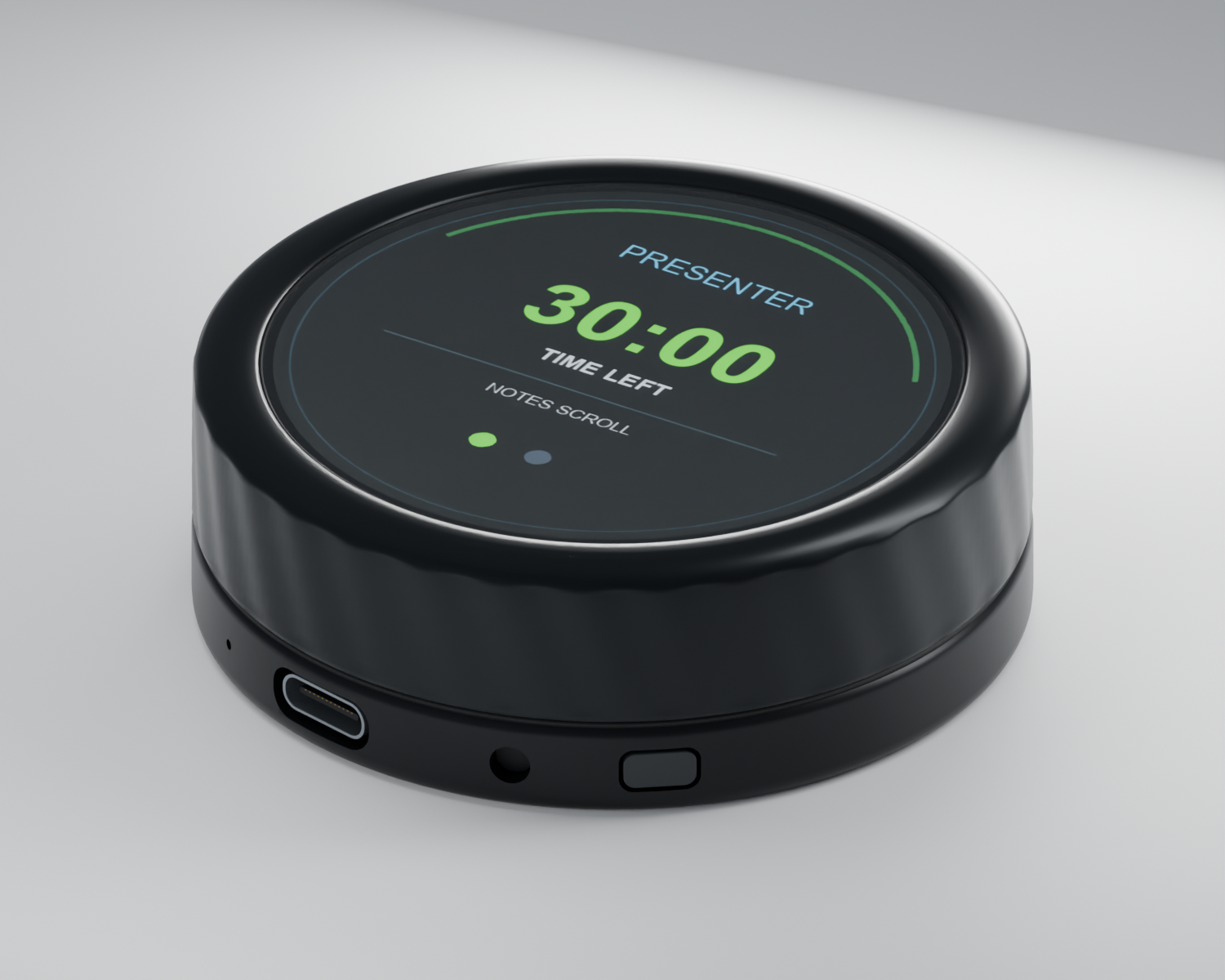
The presenter is mid-sentence. A video cue is coming. And the notes need a small nudge.
This is not the moment to hunt for a mouse pointer, click into the right window or wonder where the keyboard focus has gone.
With the C⁴ Puck connected to C⁴ Clock, turn the wheel to scroll PowerPoint Presenter View notes. Keep a hand on the control and your attention on the show.
A gentle turn gives you fine, smooth control. Ease the notes along a line at a time, rather than jumping past the sentence the presenter is reading.
Presenter picking up the pace? Choose a larger scroll amount. Need a careful adjustment? Dial it back. Low, Medium and High let you find the right feel.
Gone a little too far? Turn back. Small corrections are easy, so you can keep the notes moving with the speaker.
No fiddly mouse movements. No reaching for arrow keys. No breaking your flow to bring the notes window back into focus.
The countdown, slide progress and media cues stay close at hand too. Less switching between windows to find the next piece of show information.
You stay on the show. The notes keep up.
Select Try the wheel or Explore 3D to start, or press + / −. Select Stop interaction to scroll past normally. While active, drag the ring or scroll over the Puck; tap its screen for notes settings, or swipe left or right for the other page.