FREE WINDOWS TOOL · PDF → PPTX
PDF to PowerPoint.
Keep the look.
Not the editability.
C4 PDF to PPT Convertor
You don’t need to edit the presenter’s PDF. You need it to look right on screen. Flatten each PDF page into a sharp image on its own PowerPoint slide—keeping the displayed fonts, layout and element positions together.
A straightforward PDF-to-PPTX workflow for AV technicians, live events and conference playback. One PDF page. One slide. No rebuilding text boxes.
Version 1.0.1 · 26.0 MB · Windows x64 · Free · No account required
Unsigned installer. Windows or your browser may show a security warning. Keep security protections enabled and follow your organisation’s IT policy.
BUILT FOR PLAYBACK, NOT RE-EDITING
Stop fixing fonts.
Start checking the show.
Editable PDF-to-PowerPoint conversion tries to rebuild the page as text boxes and other objects. Depending on the PDF and converter, that can mean substituted fonts, shifted text or moved elements. For an AV operator who just needs to play the supplied pages, editability can be the wrong priority.
We take the simpler route: flatten the PDF. Each page is rendered as a lossless PNG and placed on one PPTX slide. The displayed font appearance, spacing and graphics stay together in a single image rather than being reconstructed as editable objects.
That gives conference playback and live-event show prep a one-page-to-one-slide workflow. Conversion runs locally on Windows, with no PDF uploads or internet connection required.
Deliberately not editable. Text and shapes are not individually editable, and PDF pages do not become animated builds or media cues. Rendering is raster-based, so quality depends on the original PDF and selected resolution. Review and rehearse the deck on the actual show system.
PDF IN. PPTX OUT.
Convert a PDF to PowerPoint in four steps
- Open the Windows app.
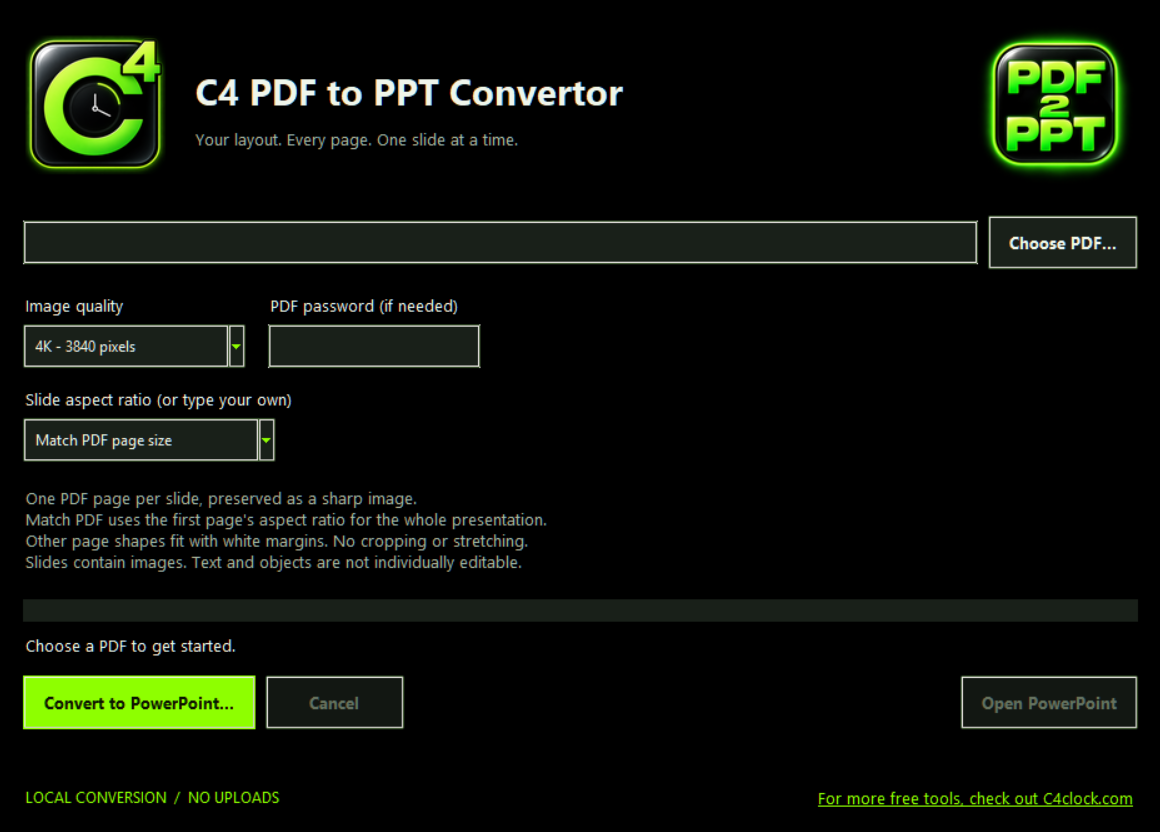
Choose your PDF. Enter its password if required.
- Choose the slide shape and quality.
Match the first PDF page, select a preset or enter a custom aspect ratio. Choose 1920, 2560 or 3840 pixels on the longest edge.
- Choose an output file and convert.
Save as PPTX. Each page becomes one slide image. You can cancel conversion if needed.
- Open, check and rehearse.
Open the output in your default presentation application. Review all pages, margins and legibility, then test playback on the show machine.
The right shape for your screen
The default follows the first PDF page’s aspect ratio. Choose a preset or custom ratio when your show canvas needs a different shape.
Mixed page sizes? Fit, not stretch.
A PPTX deck has one slide size. Other page sizes fit within that canvas with white margins—no cropping or stretching. Choose your ratio before converting and check the result on the target display.
Local conversion. No Office dependency.
You do not need PowerPoint, Adobe or a Python installation to convert. A compatible presentation application is still needed to view and play the saved deck.
PDF-to-PPT questions from the prep desk
How do I convert PDF to PowerPoint without changing fonts or layout?
Use an image-based conversion instead of rebuilding editable slide objects. C4 PDF to PPT Convertor flattens each displayed PDF page to a PNG, then puts it on one PPTX slide. Font appearance and element positions stay together in that page image. Check the selected aspect ratio, resolution and output before playback.
Why not use an editable PDF-to-PPT converter for an AV show?
Editable conversion tries to reconstruct text boxes, fonts and other slide objects. Depending on the PDF and converter, fonts can be substituted and elements can move. If the job is to play the supplied pages rather than edit them, a flattened slide image avoids that reconstruction step. If you need editable content, use a different workflow or request the original deck.
Is this PDF to PowerPoint converter free?
Yes. C4 PDF to PPT Convertor is a free Windows app. No account or C⁴ Clock Pro licence is required.
Does it work offline? Are my PDFs uploaded?
Conversion runs locally on your Windows PC. Your PDF is not uploaded. No internet connection, Adobe, Python installation or PowerPoint installation is needed to convert. You need a compatible presentation application to view or play the resulting PPTX.
Will embedded fonts and the PDF layout look the same?
The app renders the displayed PDF page as an image, including its embedded font appearance, then places that image on a slide. It does not rebuild the page with substituted PowerPoint fonts. Review the converted presentation before the show; raster image quality depends on the source PDF and chosen output resolution.
Can I edit the text and shapes in PowerPoint?
No. Each slide contains a page image, not individually editable text or shapes. This is a visual-fidelity workflow, not a way to recover the original editable presentation. Builds, animations and transitions are not recreated.
Can I convert widescreen, 4:3 or custom-size PDFs?
Yes. Match the first PDF page’s aspect ratio, choose a preset or enter a custom ratio. All slides in the presentation use that ratio. Pages with different sizes fit within the slide with white margins, without cropping or stretching.
What image quality can I choose?
Choose 1920, 2560 or 3840 pixels on the longest edge. Each PDF page is embedded as a lossless PNG image. Higher resolution can increase presentation size; it cannot recover detail missing from the original PDF.
Can I open a password-protected PDF?
You can enter the PDF password in the app. You must know the password and have permission to use the document.
Will the PPTX work with my show playback system?
The output is an image-only PPTX. Test it in the exact application, version and show machine you intend to use. Compatibility with specific AV playback systems has not been verified.
Is there a Mac version?
No. This download is for Windows. Mac support is not claimed.
Which Windows PCs are supported?
The installer is for Windows x64 and installs for the current user. It has been tested on a Windows x64 host; compatibility across older Windows releases and Windows on ARM has not been qualified.
Is the installer code-signed?
No. The current installer is unsigned, so Windows or your browser may show a security or publisher warning. Keep security protections enabled and follow your organisation’s IT policy. Do not assume a warning is harmless; verify the download source and scan the file if required.