Free Windows stage timer with deep PowerPoint integration.
Connect the C⁴ add-in on each presentation PC. Keep countdown, slide progress and media timing together at the desk.
“That’s not the right font.” Catch it before rehearsal.
You don’t always know how a supplied deck should look. A substituted font can be the first thing the presenter notices—and the last thing you want to discover in front of them.
The C⁴ add-in reports detected missing fonts and their slide locations. Its preflight report also shows whether slide timings are enabled and whether saved automatic timings are present, so you can check a deck that might advance itself.
Before the first rehearsal
- Fonts: review reported font names and slides.
- Timings: check whether automatic advance is intended.
- Media: locate video and audio before playback.
The add-in’s scan report works as a standalone speaker-prep tool. Pre-show and live warning displays in C⁴ Clock require Pro or an active Pro trial.
Keep the last slide up until you switch away.
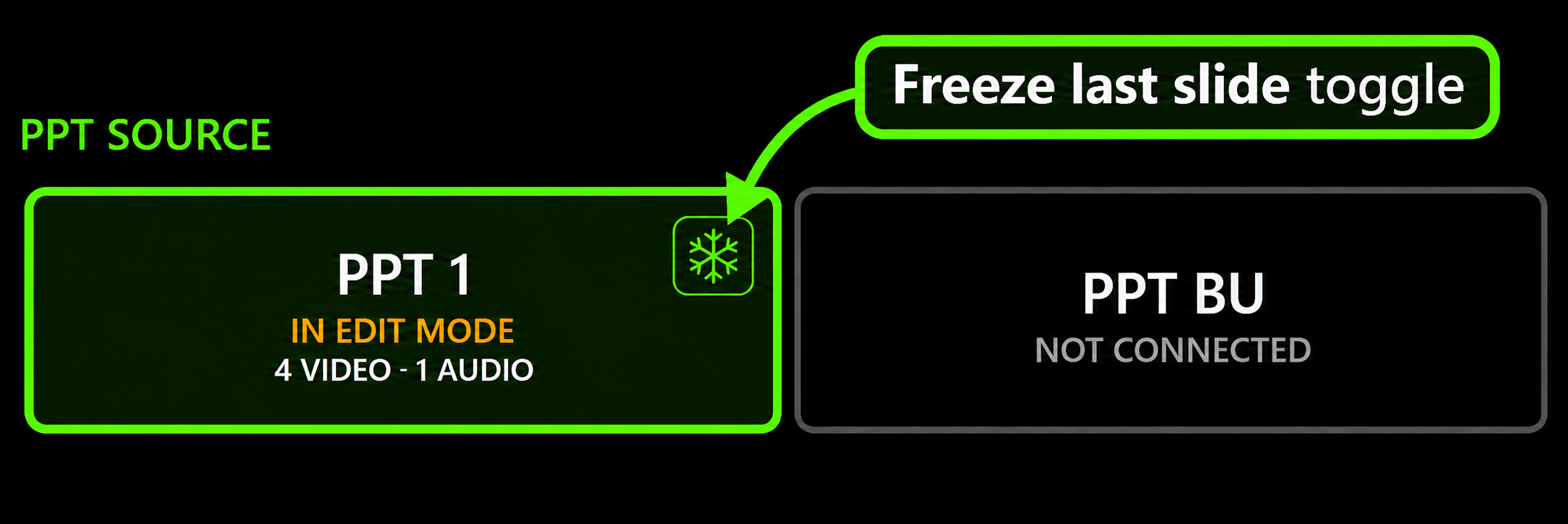
The presenter finishes and clicks once more. You’re still on their source. Freeze last slide blocks supported forward keyboard and clicker inputs after the final build, giving you time to make the switch.
Toggle the snowflake on the connected PowerPoint source in C⁴—even mid-show. Final builds and backward navigation remain available. Esc still exits.
Know when the video finishes. Be ready for the next cue.
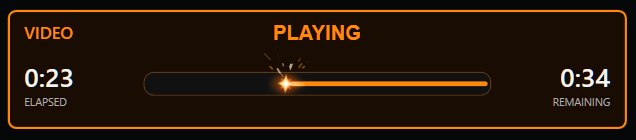
See elapsed and remaining time for reported PowerPoint media playback alongside the speaker countdown. C⁴ Free includes media duration timing and one PowerPoint source. Pro supports up to four sources.
Pro’s upcoming-media warnings flag video or audio before the presenter reaches the slide, including reported click-to-play media.
Start the clock when the presenter advances.
Arm the countdown before the handover. With the presentation on slide 1, the clock can start as the presenter advances to slide 2—one less start button to remember while you manage the room.
Pause, resume and manual start remain available. Rehearse the automatic-start workflow →

Next presenter. Timer loaded. PowerPoint ready.
Import the run sheet, review names and durations, then explicitly link each presenter’s PowerPoint. With AUTO LOAD PPT on, LOAD NEXT loads their timer and opens the linked Main and optional Backup decks in slideshow on slide 1. Arm separately when you’re ready.
Follow the handover workflow → · Detailed setup and folder approval →
Connect it to the show.
- Download C⁴ Clock for the Windows clock PC.
- Install the C⁴ add-in on each Windows desktop PowerPoint PC. Close PowerPoint during installation.
- Connect and check. Use the same show network and matching clock IP, source and receive port. Confirm slide changes reach C⁴ before the session.
PowerPoint connection guide → · See C⁴ at the operator desk →
Which edition do I need?
C⁴ Free includes the countdown, one PowerPoint source, slide counts, media duration timing and Freeze last slide. Pro adds up to four sources, pre-show and live warnings, linked deck loading and run sheet tools. See the full feature comparison.
Free can be installed on unlimited machines. Pro includes three Clock machine activations. PowerPoint source limits and Clock machine activations are separate. The integration is for Windows desktop PowerPoint.
Solve the next show problem
Try it with your next presentation
Download C⁴ Clock Free for Windows. Start the optional 30-day Pro trial when you are ready to explore the additional tools.