Normal PowerPoint monitoring and manual arming are available in Free and Pro. Linked run-sheet deck loading is a separate Pro feature.
Rehearse the start, not just the countdown
- Connect PowerPoint to C⁴. Use the C⁴ add-in on the Windows presentation PC. Confirm that the selected source updates when you change slides.
- Load the speaker’s duration. Check the countdown is ready with the correct time before enabling automatic start.
- Put the presentation on slide 1. Use the same deck and source that the presenter will use.
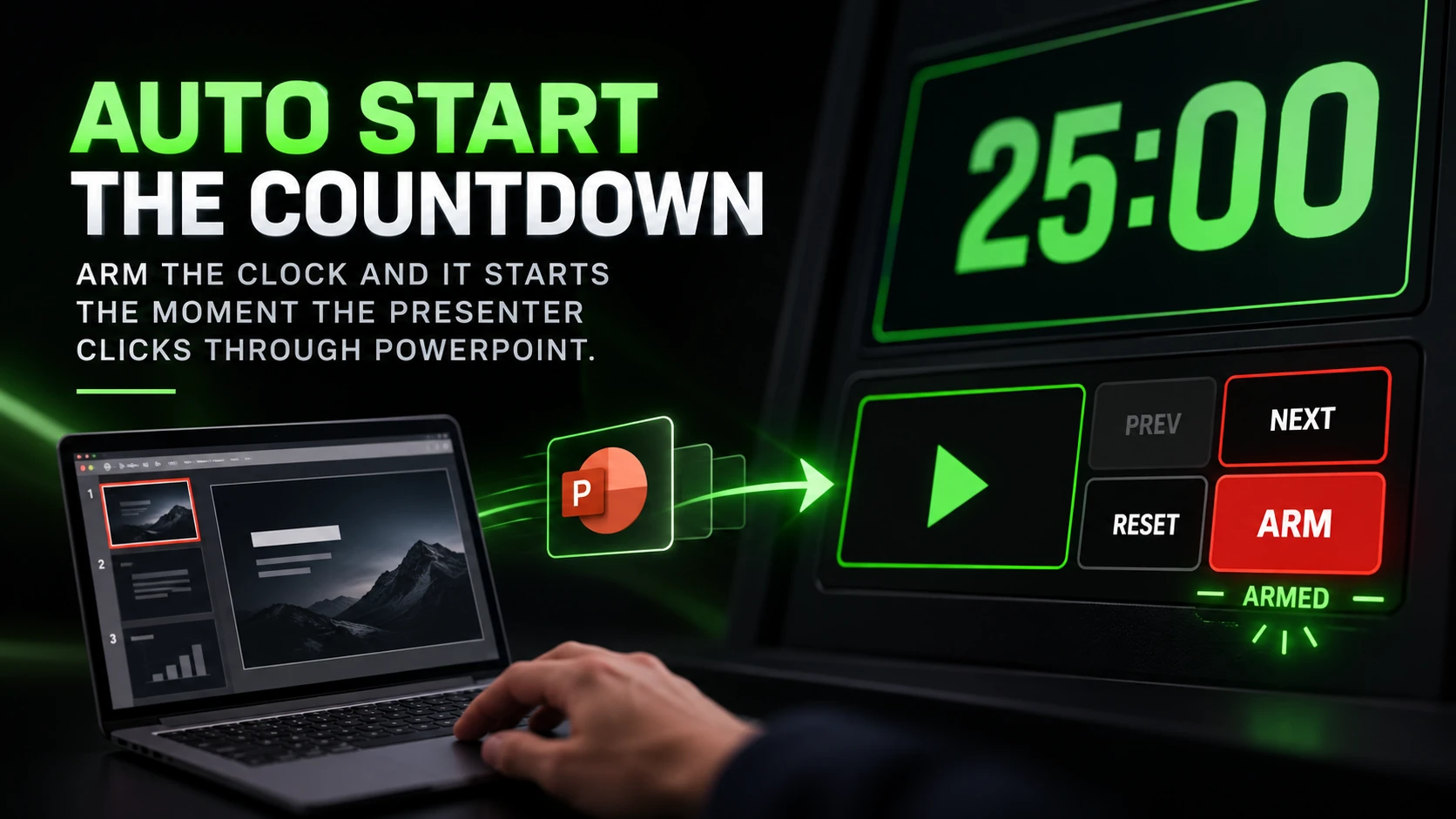
- Arm the clock. When the presenter advances from slide 1 to slide 2, confirm that the countdown starts as intended.
- Reset for the live start. Return to the opening slide and prepare the correct duration and armed state after rehearsal.
Loading is not the same as starting
In Pro or an active Pro trial, LOAD NEXT can prepare the next presenter’s timer and open their explicitly linked PowerPoint in slideshow. That does not immediately start the countdown. ARM remains independent.
This gives you time to check the opening slide and selected presenter before the talk. If you don’t use automatic start, the normal Play/Pause controls are still available.
Check how this presenter actually opens
Some presenters begin on a holding slide, skip the title, or use builds before advancing. Rehearse their real start sequence and decide whether slide-triggered or manual starting fits the session. Do not assume every click is a slide change.
If the clock does not receive slide updates, check the network/source connection before relying on automatic start. Manual controls remain available; verify that the timer is running rather than treating a connection fault as a successful trigger.
Connect the add-in and check the source → · Prepare the next presenter from the run sheet →
More operator workflows
Try it with your next presentation
Download C⁴ Clock Free for Windows. Start the optional 30-day Pro trial when you are ready to explore the additional tools.