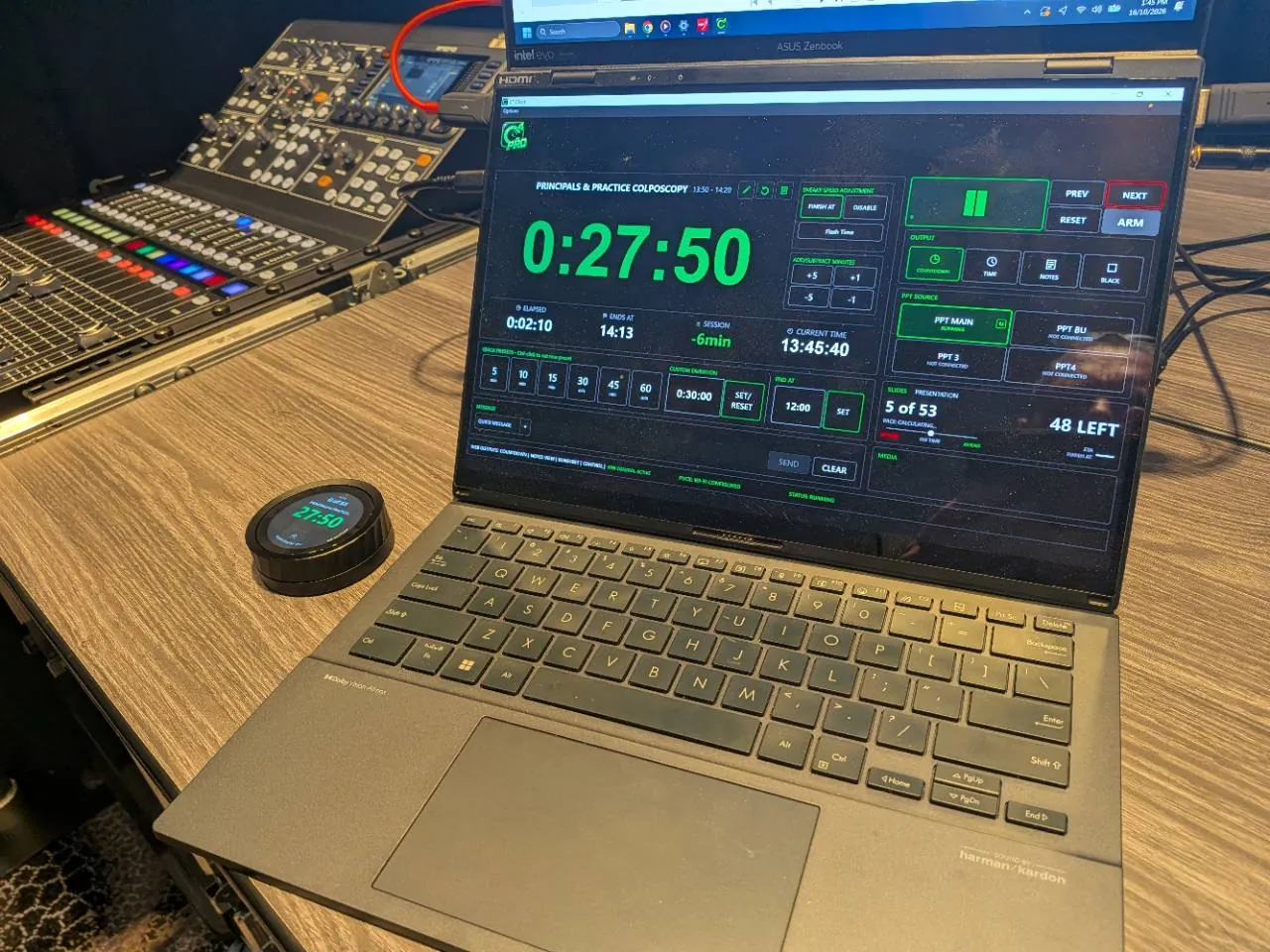
A conference stage timer needs to do two different jobs. The presenter needs an easy-to-read countdown. The operator needs the controls and the information behind it. C⁴ Clock separates the operator view from the output, so you can work on the show without putting those controls on the presenter’s display.
Use windowed or borderless output for the countdown. Choose time of day, notes or a black screen when that is what the moment calls for. A web countdown and notes view are also included in C⁴ Free.
Catch the deck surprise before the presenter does
A missing font discovered during rehearsal. A deck advancing on saved timings. An extra click taking the final slide away before you’ve switched sources. C⁴’s PowerPoint workflow gives you specific checks and controls for those moments. Check fonts and timings before rehearsal, or hold the last slide while you make the switch.
Set the time the way the show calls for it
- Regular speaker slots: use a quick preset or enter a custom duration.
- A fixed finish: enter an end time instead of doing the countdown maths yourself.
- A pause or handover: pause, resume or reset the timer from the operator controls.
- A quiet cue: send a message to the presenter’s display rather than interrupting from the side of the room.
See the PowerPoint context beside the countdown
Time remaining is only part of the picture. With the PowerPoint add-in connected, C⁴ Clock can show the current slide, slides remaining and media duration timing. You can see how the presentation is progressing without repeatedly switching windows.
C⁴ Free supports one PowerPoint source. C⁴ Pro supports up to four and adds pre-show and live PowerPoint warnings, run sheet tools and web control. See the full Free vs Pro comparison for the exact feature split.
Let C⁴ handle the next presenter
Import the client’s run sheet with presenter names and durations, then link each presenter’s PowerPoint. With AUTO LOAD PPT on, press LOAD NEXT to load their countdown, open their presentation and put it into slideshow mode. Arm automatic start, and the countdown begins when they advance from slide 1 to slide 2.
Less juggling windows and controls. More attention on the show. Linked presentation loading is available in C⁴ Pro and an active Pro trial. See the handover workflow.
Keep the client informed without another timing question
For a session with several speakers, the clock and the schedule need to stay connected. Pro’s live run sheet dashboard lets clients see timing information themselves. When permitted, they can adjust presenter, Q&A, panel or session times without asking the operator to make every change.
That leaves you free to concentrate on the next presentation and the show. See the client dashboard workflow.
Fit timing into the operator’s control surface
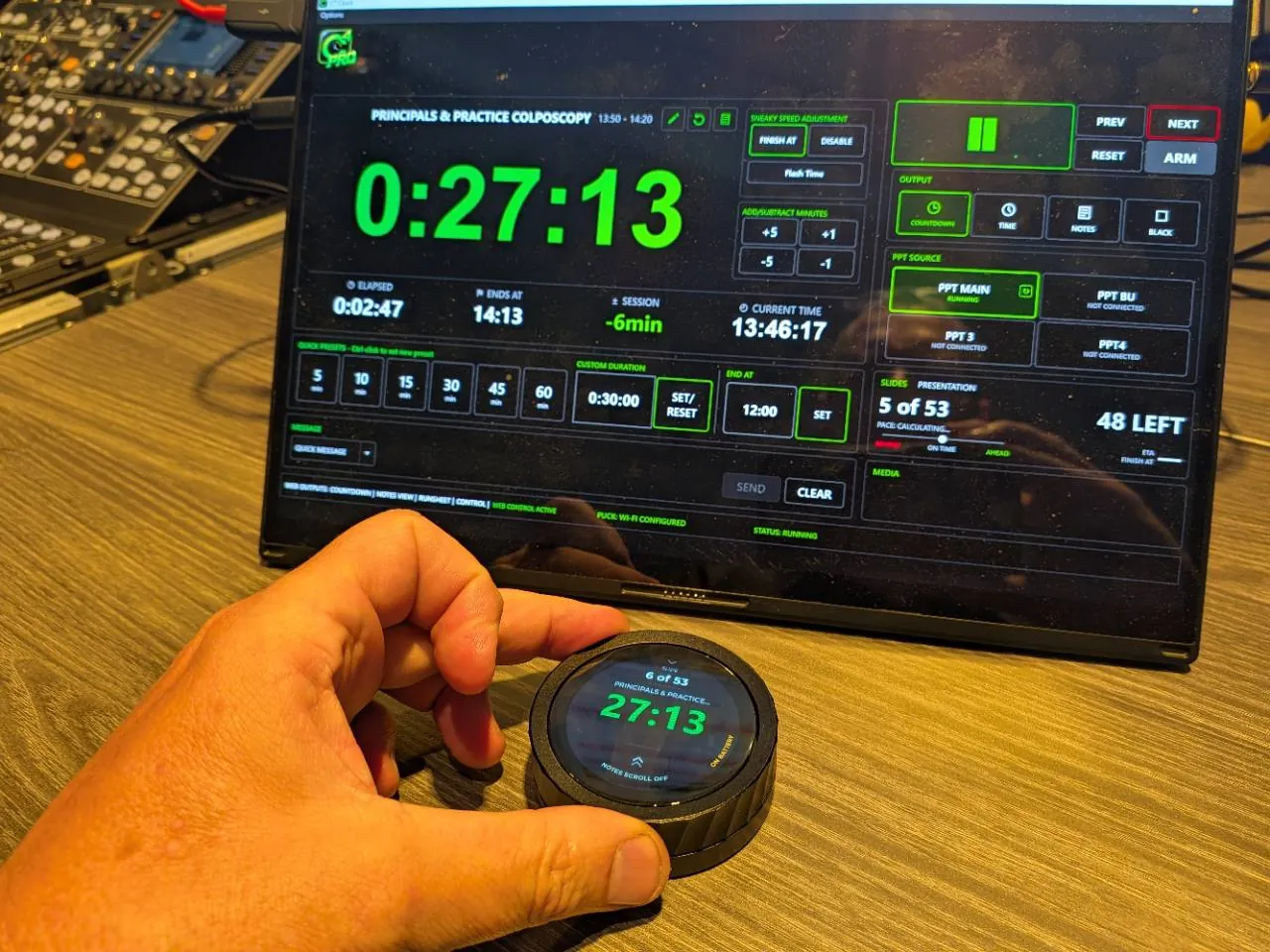
Companion support is included in both editions, so a Stream Deck can sit alongside your existing AV controls. The optional C⁴ Puck adds a tactile wheel for PowerPoint presenter-notes scrolling, with timing and presentation information close at hand.
Stage timer questions
Is C⁴ Clock a browser-only timer?
No. The clock application runs on Windows. Its web views complement the Windows operator workflow; they do not replace the installed application.
Can I use it without buying Pro?
Yes. C⁴ Free includes the core countdown controls, presets and custom end times, display outputs, Companion support and one PowerPoint source. Free can be installed on unlimited machines. Pro includes three machine activations; Company Pro is available for larger teams.
Where should I start?
Download the Windows app, try the operator view with your presentation workflow, then follow the PowerPoint connection guide if you want slide and media information beside the clock.
For the next job, use the AV operator guides for automatic start, media cues and presenter handovers.
Try it with your next presentation
Download C⁴ Clock Free for Windows. Start the optional 30-day Pro trial when you are ready to explore the additional tools.