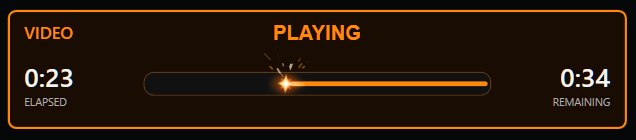
Watch the playback time beside the clock
When the connected PowerPoint add-in reports media playback and duration, C⁴ shows how long the clip has run and how much time remains. The operator can follow the media without treating the speaker’s countdown as a clip timer.
Media duration countdown is included in C⁴ Free and Pro. Free connects one PowerPoint source; Pro supports up to four. You need the add-in on the Windows desktop PowerPoint machine that plays the presentation.
Check the next cue before the slide arrives
A silent opening on a video, an unexpected audio item or a click-to-play clip can change what the operator needs to do next. Pro’s pre-show and live warnings give you a heads-up about reported upcoming media and playback behaviour.
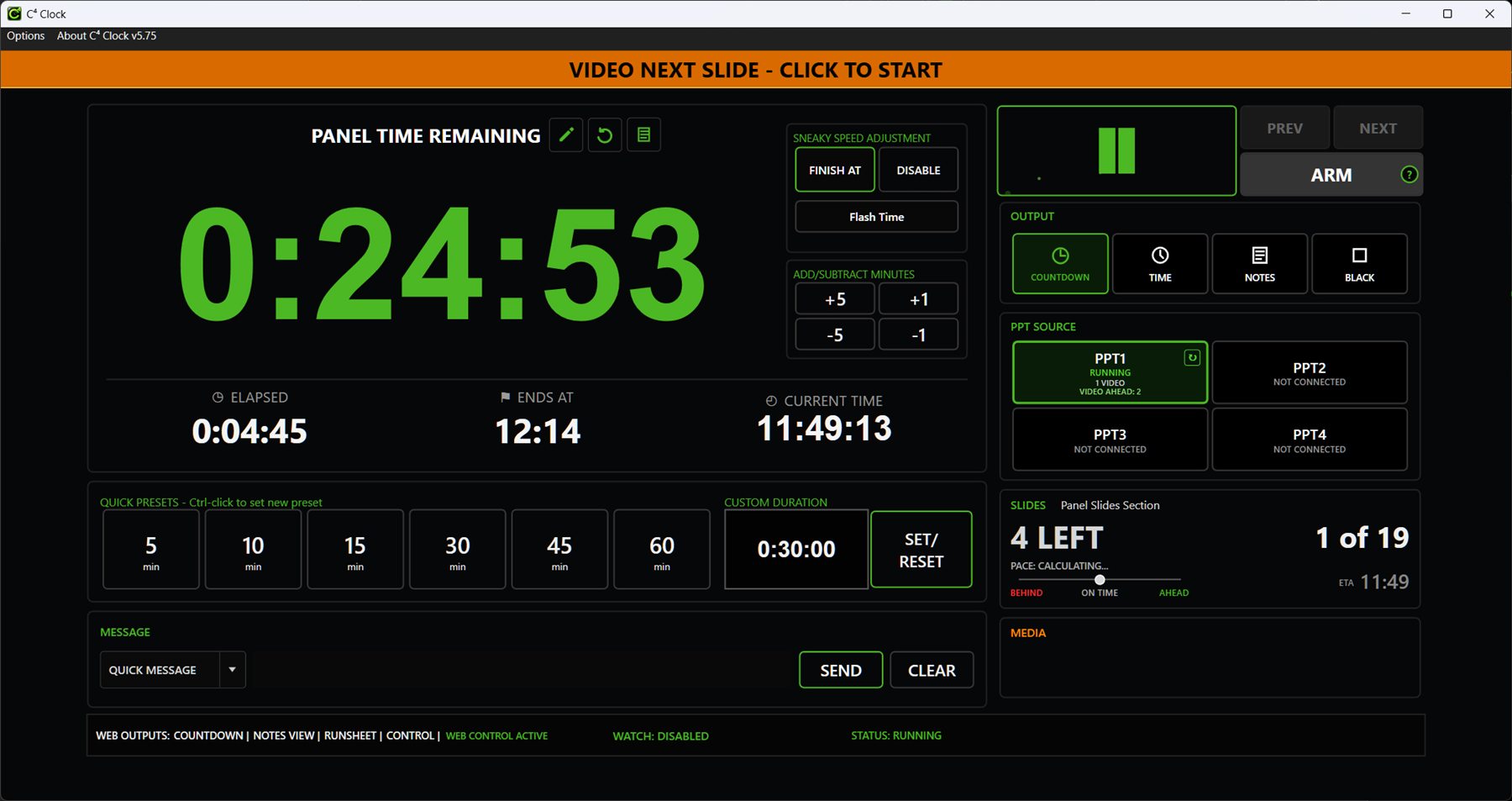
Upcoming-media warnings require Pro or an active Pro trial. They are separate from the playback-duration display included in Free.
Rehearse the actual clip
- Scan the deck. Use the add-in’s media findings to locate slides with video or audio before rehearsal.
- Play it on the show PC. Confirm the expected slide, source, playback status and duration information reach C⁴.
- Check the start behaviour. Rehearse any extra click needed to start the media, as well as its ending and the next slide.
- Keep the audio position informed. The Pro audio-operator view can bring timing and media cues to that desk. Explore the audio view.
Use the information PowerPoint reports
Media types and playback setups differ. Check duration reporting for the files in your actual deck; don’t assume every online or embedded player will provide the same information. If duration is unavailable, rehearse the clip and use your normal cueing workflow rather than guessing from an empty display.
Connection and add-in setup → · PowerPoint timing and show-control overview →
More operator workflows
Try it with your next presentation
Download C⁴ Clock Free for Windows. Start the optional 30-day Pro trial when you are ready to explore the additional tools.